Introduction
Plenty of companies these days run their own LLM gateway – often built on LiteLLM – giving them centralized access to a whole range of models: Anthropic, OpenAI, Gemini, but also open or self-hosted models. If you use Claude Code through such a gateway, until now you could only properly select Anthropic models via /model. You could technically pass other models by their model ID through claude --model <model-id>, but to me that always felt like a workaround rather than a real solution.
This focus on Anthropic models naturally creates a certain vendor lock-in, something Anthropic gets criticized for a lot. It’s also a shame not to have the full flexibility your own gateway’s model selection would theoretically give you. But since version v2.1.242, released on August 25, 2026, Claude Code now lets you configure the model picker via .claude/settings.json. You can give Claude Code a list of options that show up in the model picker in addition to the native models (the Anthropic lineup). That means you can now, in theory, use any model your gateway offers – and select it comfortably through the model picker. In this article I’ll show you how that works – including a small trick to speed up the configuration. The image below shows what the result looks like:

Prerequisites
First, a few prerequisites:
You need Claude Code updated to at least version v2.1.242.
Connecting other models also only works if Claude Code talks to a gateway using an API key. Any OpenAI-compatible gateway works for this – for example a self-hosted LiteLLM proxy or a gateway provided by your own company. How you generally connect Claude Code to such a gateway depends on the provider; usually it’s enough to set the base URL and an API key via environment variables or in .claude/settings.json.
Once Claude Code is connected to the gateway, you need to specify the additional models in .claude/settings.json. For every extra model you want in the list, you need to define:
model: The model ID, passed through to the gateway 1:1.label: The name shown in the Claude Code UI.description: The description shown in the Claude Code UI.behavesAs: A comparable Claude model used as a reference for context window and capabilities.
For behavesAs, just enter an Anthropic model with a matching context window and, ideally, similar capabilities. If you leave it out, Claude Code doesn’t know how much context the model can handle or when auto-compaction needs to kick in – and it throws an annoying warning.
Configuration example
Here’s an example configuration with a few made-up but typical model names, the kind you might find on a gateway. You simply drop this JSON block in as a top-level key in .claude/settings.json:
  "modelPicker": {
    "options": [
      {
        "model": "gemini-2.5-pro",
        "label": "Gemini 2.5 Pro",
        "description": "Google Gemini 2.5 Pro — strong reasoning and coding model",
        "behavesAs": "claude-sonnet-5"
      },
      {
        "model": "gpt-5.6",
        "label": "GPT 5.6",
        "description": "OpenAI GPT 5.6 — advanced coding work",
        "behavesAs": "claude-sonnet-5"
      },
      {
        "model": "gpt-oss-120b",
        "label": "GPT OSS 120B",
        "description": "Open-source GPT model — 120B parameters for capable coding assistance",
        "behavesAs": "claude-sonnet-5"
      },
      {
        "model": "gpt-oss-20b",
        "label": "GPT OSS 20B",
        "description": "Open-source GPT model — compact and fast coding assistant",
        "behavesAs": "claude-haiku-4-5"
      },
      {
        "model": "llama-3-3-70b",
        "label": "Llama 3.3 70B",
        "description": "Meta Llama 3.3 — 70B general-purpose open model",
        "behavesAs": "claude-sonnet-5"
      },
      {
        "model": "qwen3-coder-480b",
        "label": "Qwen3 Coder 480B",
        "description": "Alibaba Qwen3 Coder — 480B coding-optimized model",
        "behavesAs": "claude-opus-5"
      }
    ]
  },
Usage
Once that’s configured, you can use all of these models in Claude Code:
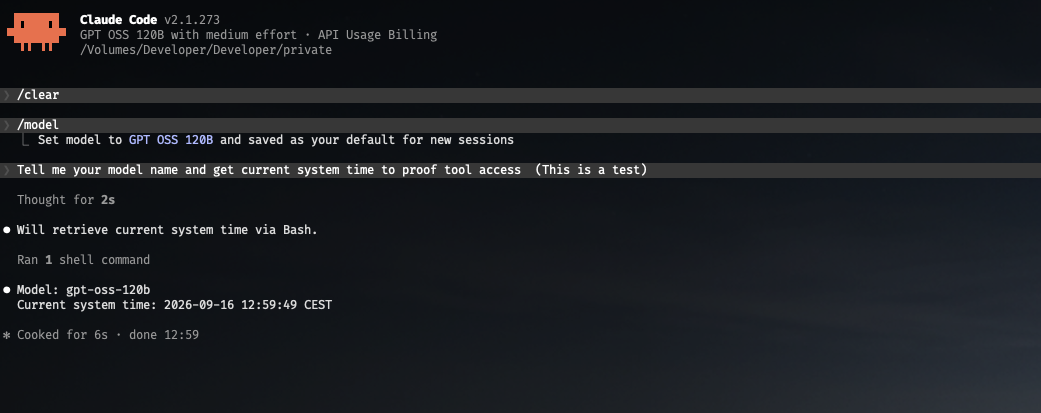
Voilà! You can now use GPT-OSS inside Claude Code!
Experience with other models
A few notes on my hands-on experience with these models: The GPT models work really well for coding tasks in my experience. I did run into some issues with the web search tool, though. What interested me most was whether cheaper or self-hosted open-source models are viable for coding tasks. My experience there has been mixed so far – smaller models are sometimes too slow or too weak for more complex tasks. For small, clearly scoped tasks, though, it can pay off in terms of saving budget and tokens.
Automatic updates via script
There’s still one problem: the available models keep changing, and writing all the labels and descriptions by hand is time-consuming. So I built a script that automatically pulls the models supported by the gateway. It works via the OpenAI-compatible /v1/models endpoint, which practically every LiteLLM gateway provides. That returns a list of all model IDs you can address through the gateway.
To turn that list into a configuration JSON, you can do something nice: ask AI!
With an API call to one of the models available on the gateway, you can have it turn the list into JSON for you. That JSON also includes all the labels, descriptions, and a model string for the behavesAs key. All that’s left is to paste this JSON into .claude/settings.json, fix up the commas and brackets, and you’ve got a finished configuration. If the available models change, you can simply run the script again.
The script is available as a gist here: https://gist.github.com/Tobias-Braun/e9ea219529b1309fdf9efbaf948f3ae5
Important: you’ll need to pass your own gateway URL and API key to the script. Feel free to create a temporary (rate-limited) key for this if you don’t fully trust the process.
After installing the openai Python package:
python -m pip install openai # install openai package for pythonrun the script like this:
python list_models.py sk-abc...123 \
  --base-url https://your-litellm-gateway.example.com/v1 \
  --filter-model gpt-5.6
sk-abc...123 is your API key, --base-url is your gateway’s OpenAI-compatible base URL, and --filter-model is the ID of a model on your gateway that prepares the list for you. Alternatively, you can set the API key and base URL via the LITELLM_API_KEY and LITELLM_BASE_URL environment variables. If you leave out --filter-model, the script just prints the raw list of model IDs.
The extra call to the filter model realistically costs you only a few cents. If you have any questions, feel free to reach out!
I hope this was helpful.
Happy (vibe) coding!